1Installation
- Open Scribeo.dmg (double click) and drag the Scribeo icon into the Applications folder.
- Open Applications and launch Scribeo with a double click.
Scribeo runs on Macs with Apple Silicon (M1 or later) and macOS 15 or higher. It stays open in the background (icon in the top menu bar) so it's always ready.
2Permissions (just once)
On your first recording macOS will ask for a few permissions:
- Microphone → Allow (records your voice).
- Screen Recording → Open System Settings, turn on the switch for Scribeo, then quit and reopen the app. It's needed to capture the computer's audio (the other party's voice) — it does not record your screen's video.
- Calendar → Allow (to see upcoming events and link notes).
- Reminders → Allow (to turn action due dates into Apple Reminders).
- Notifications → Allow (to alert you when a recording is in progress).
3Artificial Intelligence
Smart notes (summary, key points, decisions, to-dos) work right away, with nothing to set up: Scribeo AI is included, with an allowance to try it. After each call the notes start on their own.
Use your own AI key (optional)
For ongoing use you can connect your own Claude, OpenAI or Gemini key: you only pay usage to the provider, usually a few cents per call.
- Open ⚙️ Settings → Artificial Intelligence and pick the provider.
- Press "Get the key →", create the key on the provider's site and copy it.
- Back in Scribeo, paste it and press Save key. When you see ✅ "Key configured" you're set.
With your own key, Scribeo shows the real models on your account, always up to date: pick the one you prefer from the menu. With Scribeo AI included, we take care of the model for you.
Your profile
In Settings → Profile you can add your name and a photo (optional). They do two things:
- The Home greets you by name («Good morning, Chris»).
- When you ask the AI (Ask Scribeo, Brief), it calls you by name and answers more to the point.
- You can also add your role, company and a short description of what you do: the AI uses it for more relevant summaries and answers.
"This is me": in meetings people don't always call you the same way — a nickname, your initials, or the raw label the transcript uses instead of your name. In your profile you can list these other spellings, separated by commas: from then on Scribeo recognises actions assigned to any of them as yours, and the owner becomes "You" instead of a name you wouldn't recognise.
The Home (dashboard)
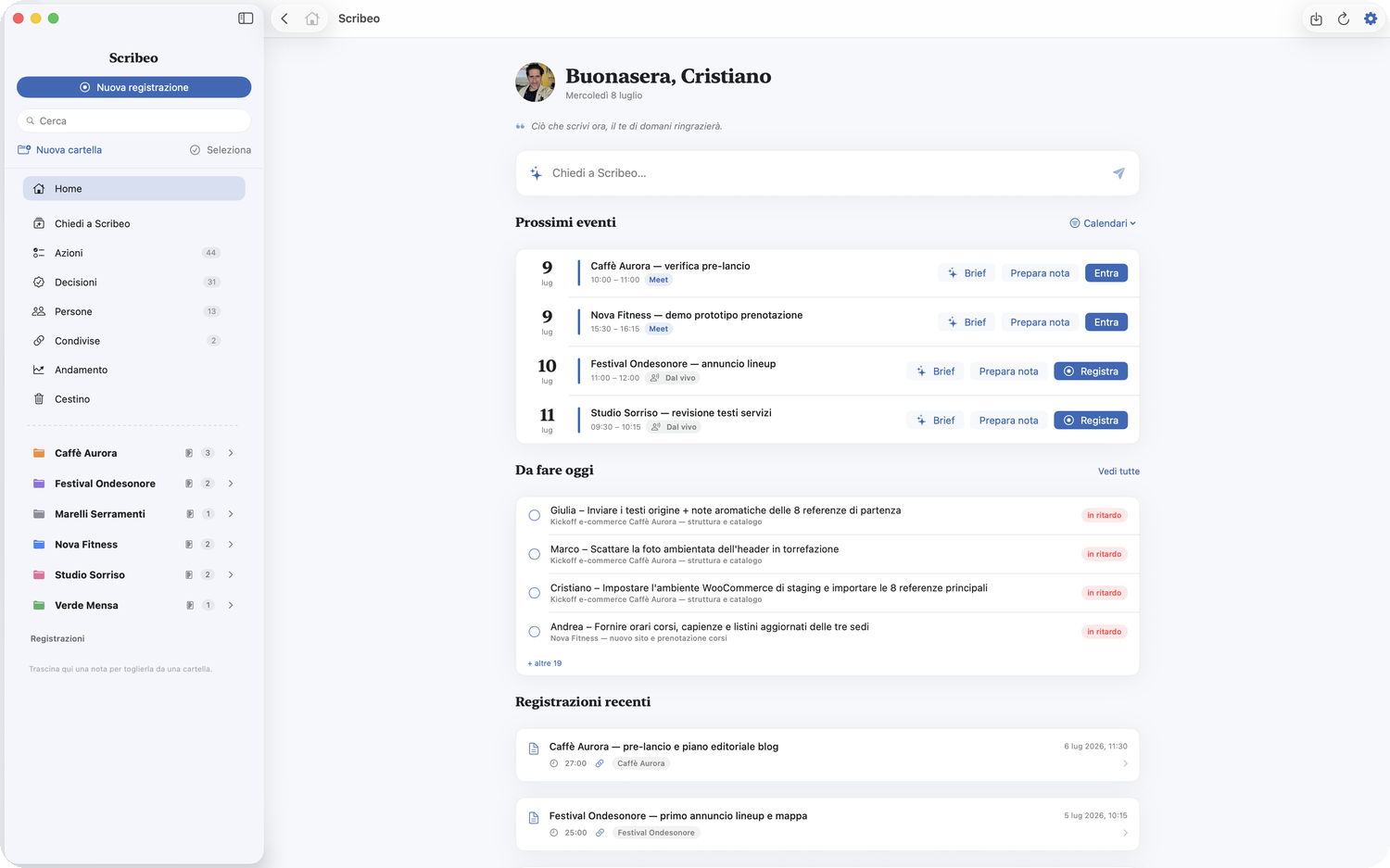
As soon as you open Scribeo, the Home greets you by name and shows you what matters today:
- Ask Scribeo — the bar at the top to ask a question across all your notes (see below).
- Upcoming events — your calendar meetings, with Brief, Prepare note and Join/Record. If you have more than one calendar — work, home, the shared family one — you choose which ones you see: the Calendars menu next to the title, or Settings → Calendars to show. Works on iPhone too, in the same two places. And if you don't need the calendar at all, you can switch them all off: “Upcoming” stays empty instead of showing you everything. To get them back, All calendars in the same menu. The menu stays open while you switch them on and off, on Mac and on iPhone.
- The memory line — under the greeting, a single line reminds you of the thing you were supposed to keep in mind: “In the last call on Project it was Ombretta's turn…”. Click it and the note opens on that very line. When there's nothing to remember, you get a phrase of the day instead.
- To do today — actions overdue or due today; click a row to open the note they come from.
- Recent recordings — your latest notes, to reopen in a click.
Record a meeting
There are several ways — pick the one you prefer:
- Automatic: in Settings enable "Record automatically when I detect a call" — Scribeo starts on its own when a video call begins (Zoom, Meet, Teams…).
- Ask first: prefer control? Enable "Ask before recording": you get a notification and decide.
- From the calendar: on the Home press Join on an event (opens the call and starts recording in the linked note) or Prepare note to write the agenda first.
- In person: for a live meeting press Record — Scribeo uses the microphone.
- Global shortcut: ⌃⌥⌘R starts/stops recording from any app.
Preparing a meeting
Press Brief on a calendar event, or open any note and use Prepare in the “My notes” tab: the meeting doesn't have to be in your calendar.
Scribeo asks you what you'll talk about — say it in your own words — and builds the brief around it, using everything it knows about the meeting: the linked previous calls, the project summary and names, your own notes and the text of the documents you attached to the note (PDF, Word, plain text). Out comes an agenda, questions to ask and points to clarify.
What you write and what you get back stay in your own notes: they don't evaporate in a chat, and after the call they feed into the AI summary. In the Ask tab you can keep asking questions about the meeting even before it happens (“what should I ask?”, “what was left open?”, “what does the attachment say about the price?”), and save any answer to your notes with one click.
While recording
You'll see a red indicator in the menu bar and the audio waveform. If you like, enable live transcription in Settings (uses a bit of CPU).
The interface gets out of the way. As soon as recording starts the sidebar folds away: what's left is the meeting name, the running time and what you're writing. Afterwards everything comes back. If you reopen the sidebar during the call, Scribeo won't close it on you.
Marking a moment (even from another app)
During a video call you're in Zoom, not in Scribeo. That's why the two most important shortcuts work from any application, with Scribeo in the background:
- ⌃⌥⌘M — mark this moment. Nothing opens and you don't lose the thread: the menu bar icon blinks, and that's it. After the call, the point you marked makes it into the notes — not in a separate section, but where it belongs: in the summary if it's a discussion point, in the decisions if it's a decision, in the tasks if someone committed to something. If no recording is running, the same shortcut opens the quick bar.
- ⌃⌥⌘N — quick note. A bar appears in the middle of the screen, above the app you're working in — which stays active. Type, press Enter, it's gone. The note goes into the notes of the call in progress, or into “Today's notes”.
Marked moments come back: in the Transcript tab, at the top, you'll find the timestamps you marked. One click and you replay from a little earlier.
When the call ends, Scribeo stops on its own (after a prolonged silence) and comes back to the front, opening the note so you can review it right away — this also applies to recordings you started manually.
Pausing
A phone call comes in, or the conversation goes off the record: hit Pause, from the note or from the menu bar — because at that moment you're most likely not inside Scribeo. The audio stops being recorded, the clock stops, and in the menu bar the red dot turns into a pause sign: one glance tells you whether Scribeo is listening.
On iPhone, from the Lock Screen. While you record, the Lock Screen shows Scribeo with the running time and three buttons: Mark, Pause and Stop. This is the case of a class or a long meeting, with the phone face up on the desk: no need to find the icon and reopen the app. iPhone asks you to confirm with Face ID, and with the phone on the desk a glance is enough.
Widgets on iPhone
The meeting is starting, the phone is on the table, and between you and the start of the recording there are unlock, find the icon, open, wait, tap. On the Mac that path is a shortcut (⌃⌥⌘R); on iPhone it's the widgets.
- The red dot starts a recording. It's always at the top right of the widget, and Scribeo opens already recording. If you have a meeting starting within half an hour, the note attaches itself to it — just like tapping Record on the row in Home.
- On the Home Screen, three sizes. Press and hold the widget → Edit Widget to choose what it shows: Today (today's meetings and the actions due), My actions, or Latest notes. You can place two side by side with different lists.
- Tapping a row opens that note, not the first screen.
- On the Lock Screen: press and hold → Customise → Lock Screen, and add Scribeo to the area below the clock. From there a recording starts with one tap: iPhone asks for Face ID and Scribeo opens already recording.
- In Control Centre: swipe down from the top-right corner → + → Add a control → Record with Scribeo. The same command can be assigned to the Action button, if your iPhone has one.
Import audio/video
Already have a recording? Import it and it becomes a Scribeo note, with transcript and AI notes just like a recorded call.
- Audio formats (mp3, m4a, wav, aiff…) and video (mp4, mov…): from video Scribeo extracts the audio track.
- From a file: the Import button in the top right → From a file…, then pick the file from your disk.
- From a link (since 1.43.0): same button → From a link…, then paste the address. Google Drive and Dropbox share links work, as does the direct address of a file (mp3, m4a, mp4…). The file is downloaded to your own computer: it never passes through our servers.
- If a link doesn't work, Scribeo tells you why: the Drive file isn't public (share it with “Anyone with the link”), the address is a page rather than a file, or it's a YouTube video — that won't work, because a video isn't a file you can download.
- Fix the date: if you import audio recorded some time ago, click the date at the top of the note to set the real call date.
Transcript and player
After a call Scribeo transcribes the audio locally with Whisper (accurate and private) and saves the transcript in the note's Transcript tab.
- Synced player: press play and the text scrolls, highlighting the current line.
- Clickable timestamps: tap a line (or its time) to jump to that point in the audio.
- Who spoke: in recorded video calls each turn is labeled You / Other party, with nothing to set up. You can turn it off in Settings.
- Format with AI: cleans up and lays out the transcript (punctuation and paragraphs) keeping it faithful — great for interviews; then exportable to Word.
- Language: in Settings choose the language of the audio to transcribe (useful for calls in another language).
AI Notes
From the transcript Scribeo generates the AI Notes: summary, key points, decisions and to-dos. You see them already formatted (clean Preview).
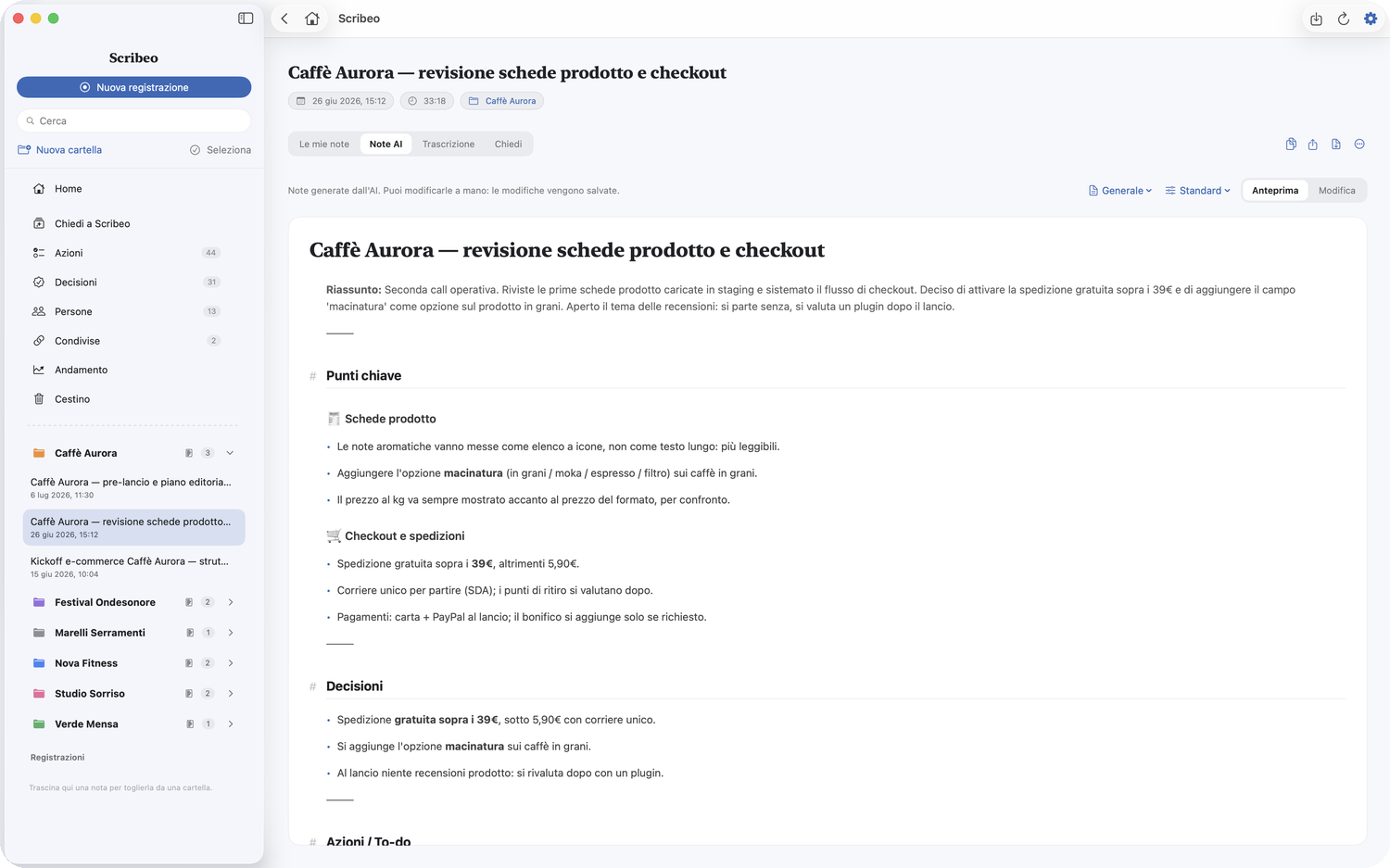
- Templates: pick the most suitable one (General, Meeting, Class, Sales, Interview, 1:1…).
- Class — the template for school and university, and the only one that doesn't come from an office. Instead of decisions and actions, the note collects the concepts explained with the definition given in class, the definitions, formulas and dates, the worked examples, the points left to clarify, the homework with its due date, and one section the others don't have: “Flagged by the teacher”: what the teacher said would come up in the test, or insisted on. Those sentences are often said in passing, in the middle of a digression: other templates would drop them as off-topic, this one goes looking for them. The title carries the date of the lesson, so several lessons on the same topic are easy to tell apart.
- Detail level: Concise, Standard or Detailed (the setting is remembered). If the summary of a very long recording stops before the end, the note says so above the summary and offers Regenerate more concisely.
- Preview / Edit: read in Preview; switch to Edit for the live-formatting editor, with the mini-toolbar (Heading, Bold, Italic, List, Task ☑︎, Link).
- My notes: the tab for your own notes (before, during or after). Press Regenerate to fold your notes into the AI ones.
- Export to PDF, or the formatted transcript to Word.
- Previous versions (“…” menu) — before any rewrite of a note, including the AI's when you regenerate, Scribeo keeps a copy of how it was. From here you can review and restore them. Restoring keeps the current version too: even a restore can be undone. Versions stay on your computer and are not synced.
Close the meeting
At the bottom of the AI Note you'll find the «Close the meeting» card with three ready-to-use post-call actions — Scribeo drafts, you decide:
- Draft an email — a follow-up email draft (subject + body), signed with your name.
- Help me decide — lays out the situation, the options and a suggestion on an open choice.
- Check what's missing — flags actions with no owner or due date, tentative decisions, promised materials and loose ends to close before the next call.
The result is plain text, ready to paste, and it's editable before you copy it. Nothing is sent automatically.

Where each point came from
Every item in your notes — summary, decisions, tasks — carries the minute that thing was said. Click it: Scribeo jumps to that spot in the recording and plays it.
Actions and due dates
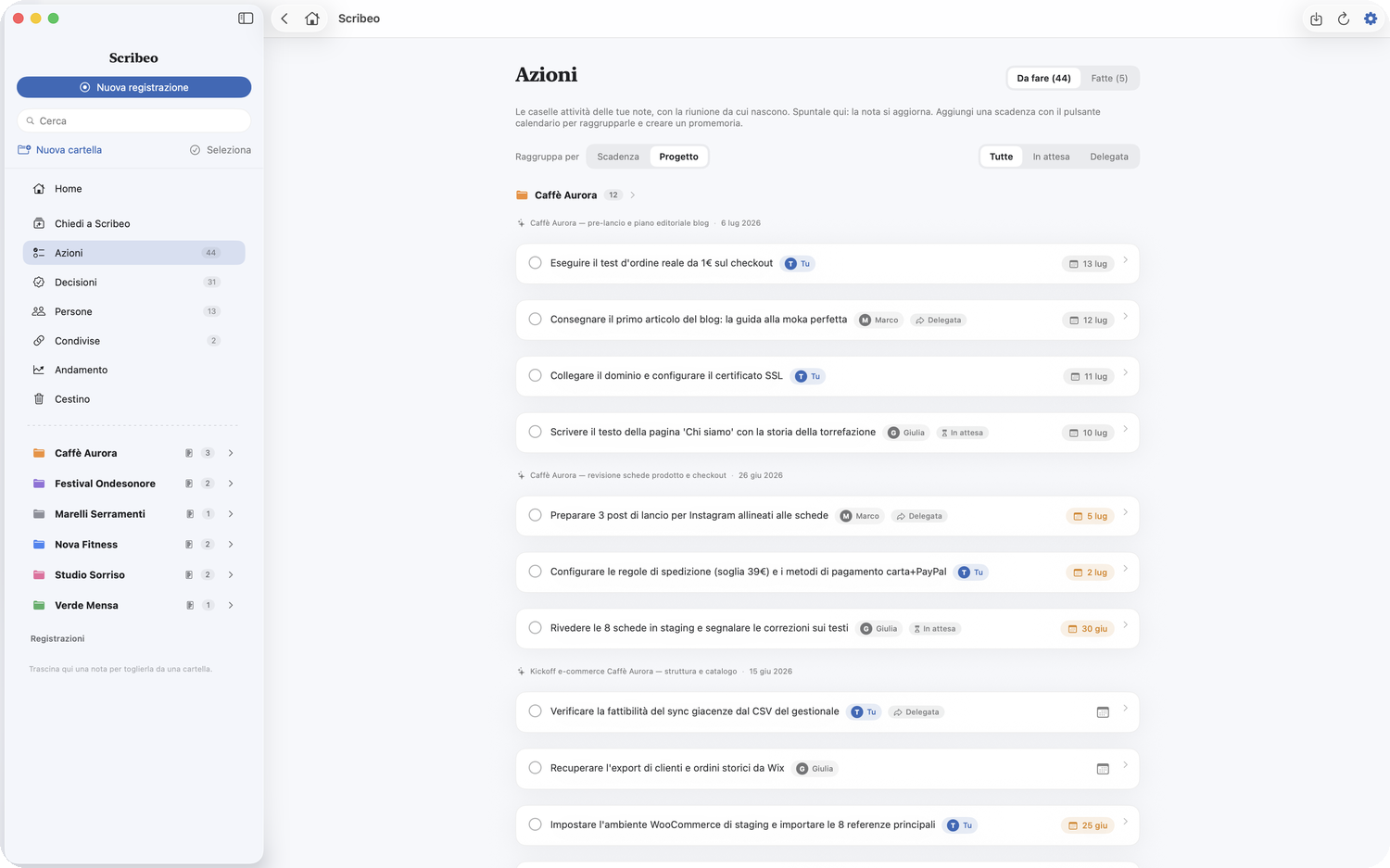
Every ☑︎ to-do checkbox in your notes becomes an Action. The Actions item in the sidebar gathers them all, with the meeting they come from.
- Group by: choose Due date (Overdue, Today, This week, Later, No date) or Project — by folder, with the meeting shown above.
- Who's the owner: if the action starts with a name (e.g. «Paolo – …»), Scribeo shows it as a tag on the right; yours are labeled «You».
- Assigning the owner: click the tag (or “Assign”, if there isn't one) and pick from the project's names. You can also do it inside the note: hover a to-do line and use the little person icon, next to the calendar. When the call doesn't make it clear who owns something, Scribeo writes “to be defined” instead of guessing — a wrong owner is worse than no owner — and now you fix it with one click.
- Add a due date (with a time too) with the calendar button: it becomes an Apple Reminder. Checking the action in Scribeo also completes the reminder.
- Actions overdue or due today appear in the Dock badge and in the Home's "To do today".
- Click a row to jump to the note; tick the box and the note updates.
Decisions
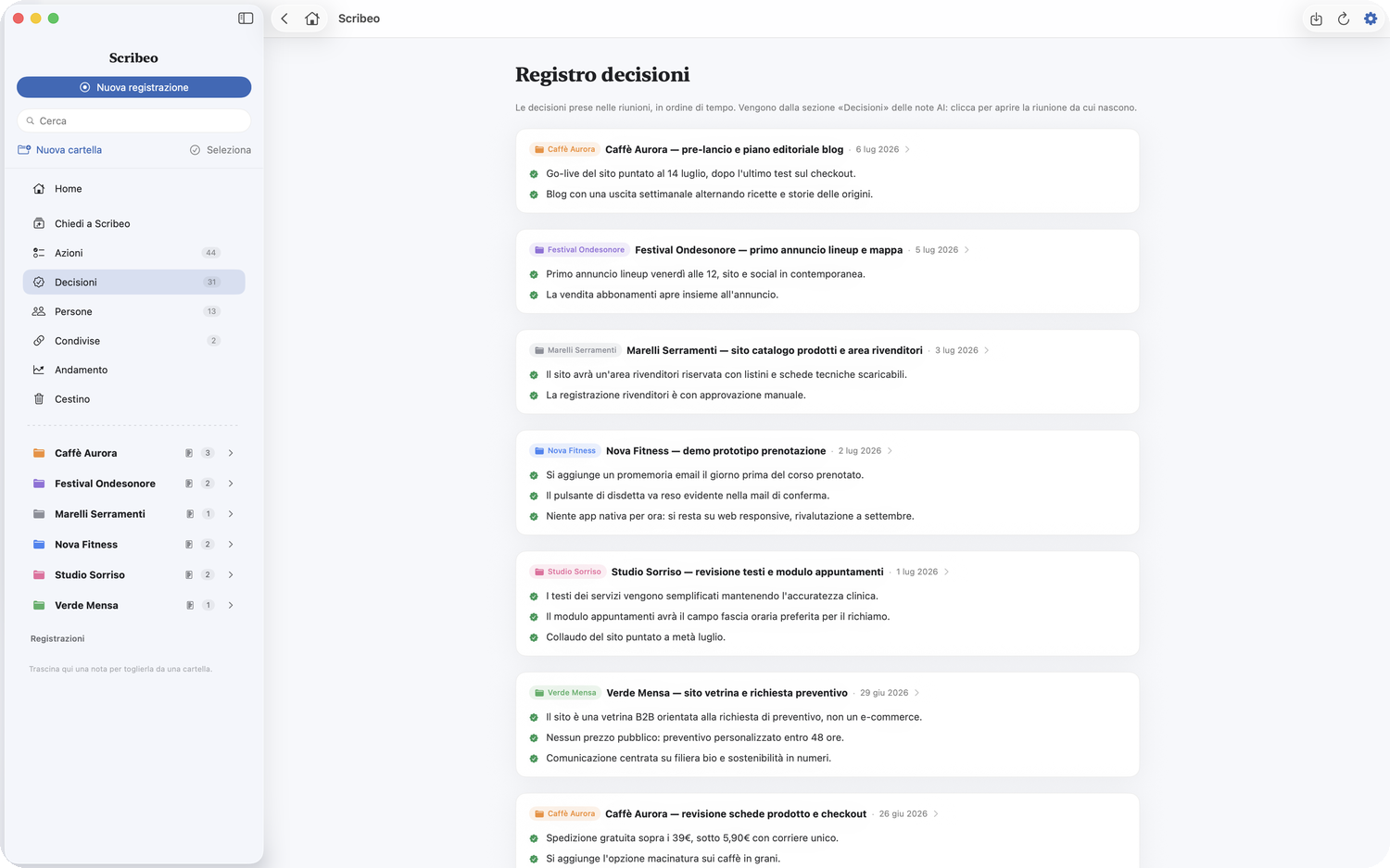
The Decisions item gathers, in time order, the decisions made in meetings (from the «Decisions» section of the AI notes). Click a card to open the meeting it comes from. If an old note doesn't show them, regenerate the notes.
People
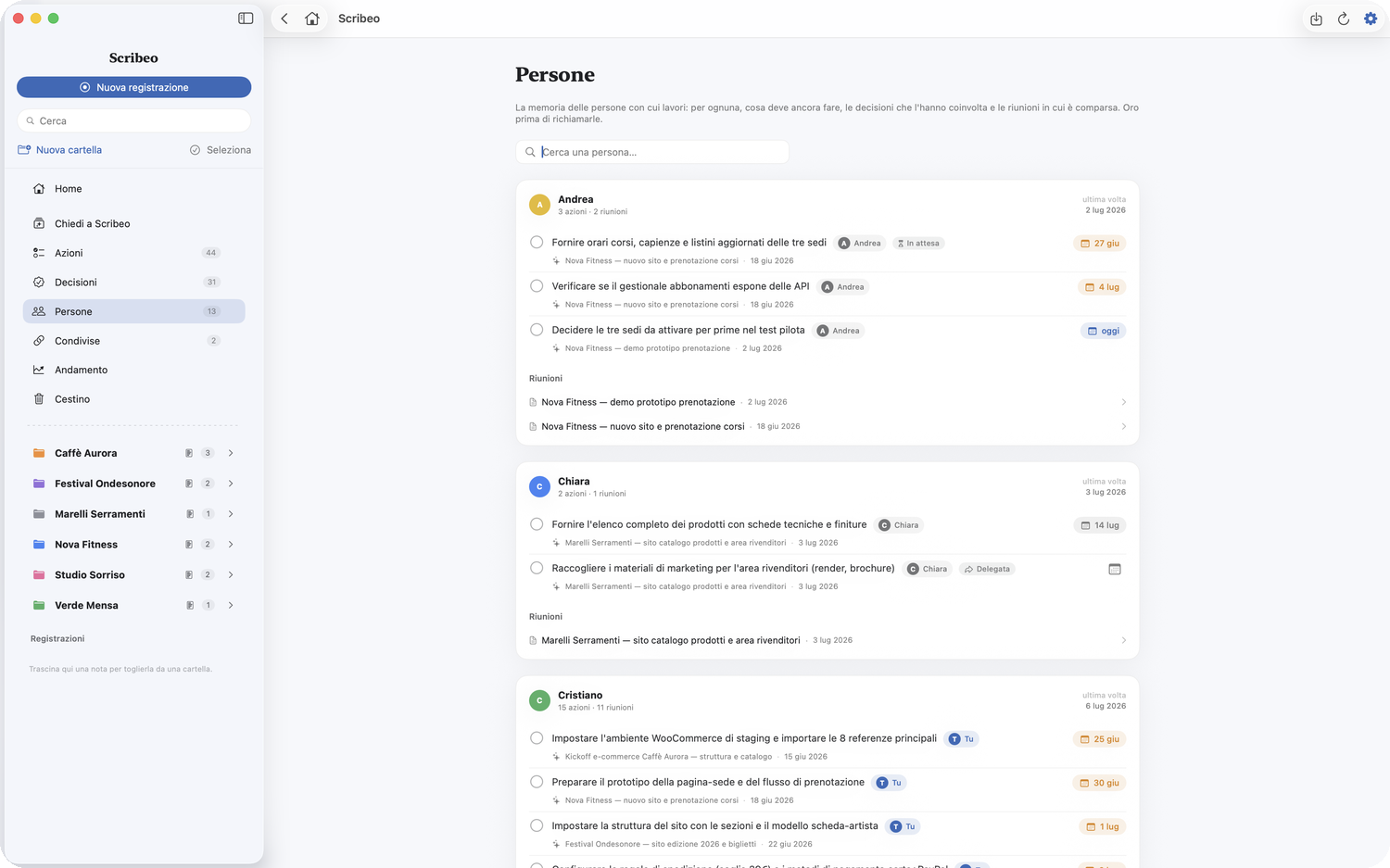
The People item automatically infers owners from actions (bold names, e.g. «Paolo – send the quote») and builds a dossier card for each: everything you know about that person, at a glance — gold before you call them again.
- Open actions they own.
- Decisions that involved them.
- Meetings they appeared in, with the last seen date.
Click any item to open the meeting it comes from. A search field at the top filters people by name when the list grows long.
Merging the same person
The same person often shows up more than once, because the transcript calls them different things: "Federica", just the surname, a nickname. Open their card and use the Merge pill: pick who they really are, and the two cards become one. The dossier, the actions and Trends all recompose, and that person stops counting twice.
The merged spellings stay visible as chips on the card: if you got it wrong, one click on the "x" splits them again.
Ask Scribeo
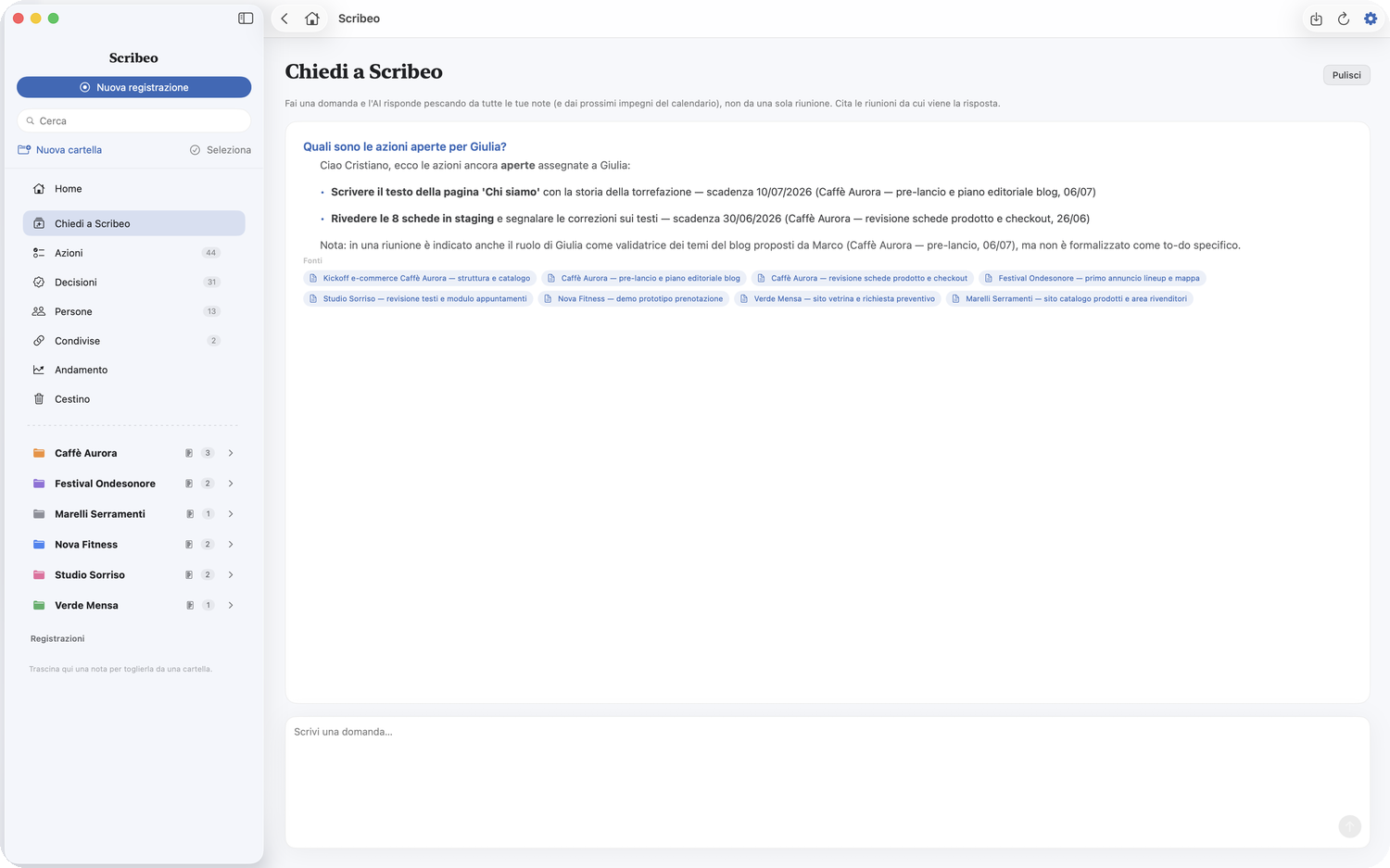
Ask a question and the AI answers from all your notes (not just one meeting) and your upcoming calendar events.
- Examples: «What did we decide with ACME?», «All open actions for Marco», «What are my next calls?».
- Each answer cites the meetings it comes from: click a source to open the note.
- It's a conversation: you can follow up («and then?», «go deeper»). Use Clear to switch topic.
The Notebook
An «Ask Scribeo» answer is often an overview worth more than the single question. Tap Save to Notebook to set it aside: the Notebook is the drawer for those overviews — open it from the sidebar (the notebook icon) and you'll find everything you've saved.
- From a Notebook note you can read it, export it or move it into a project: from there it becomes an ordinary note in that folder.
- The Notebook syncs across Mac, iPhone and iPad, just like your notes: what you save on one device you'll find on the others.
Challenge me
Recording and summarizing is half the value. The other half is doing better next time. From a note (the ••• menu, top right) you'll find «Challenge me»: Scribeo re-reads the call transcript and gives you an honest verdict on how you handled it — not another summary. What you did well, where you lost ground, what to change next time, and the key moment — with the evidence, every point anchored to the minute it happened.
- It's private: the debrief goes to your Notebook (with its own pill, and a filter to keep it apart from ordinary notes), not into the meeting's summary and not under sharing. It only leaves if you export it yourself.
- It's at its best on remote calls, where Scribeo tells your voice apart from the other person's: there it knows whose conduct it's judging. In person, with a single microphone, it stays more cautious — and says so.
- No scores: it's a mirror, not a report card. The value grows with what's at stake — deals, interviews, sales, negotiations.
Project summary
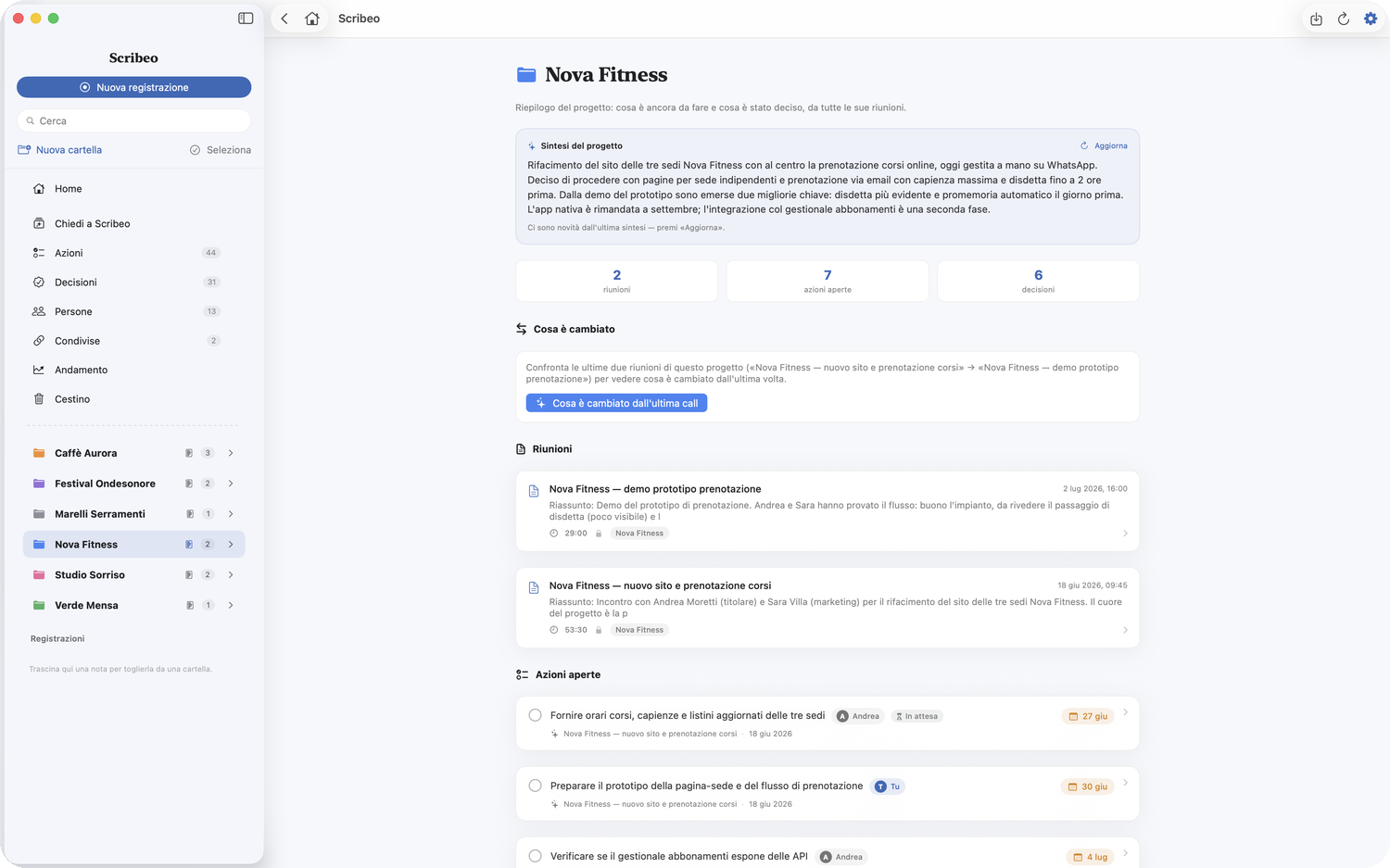
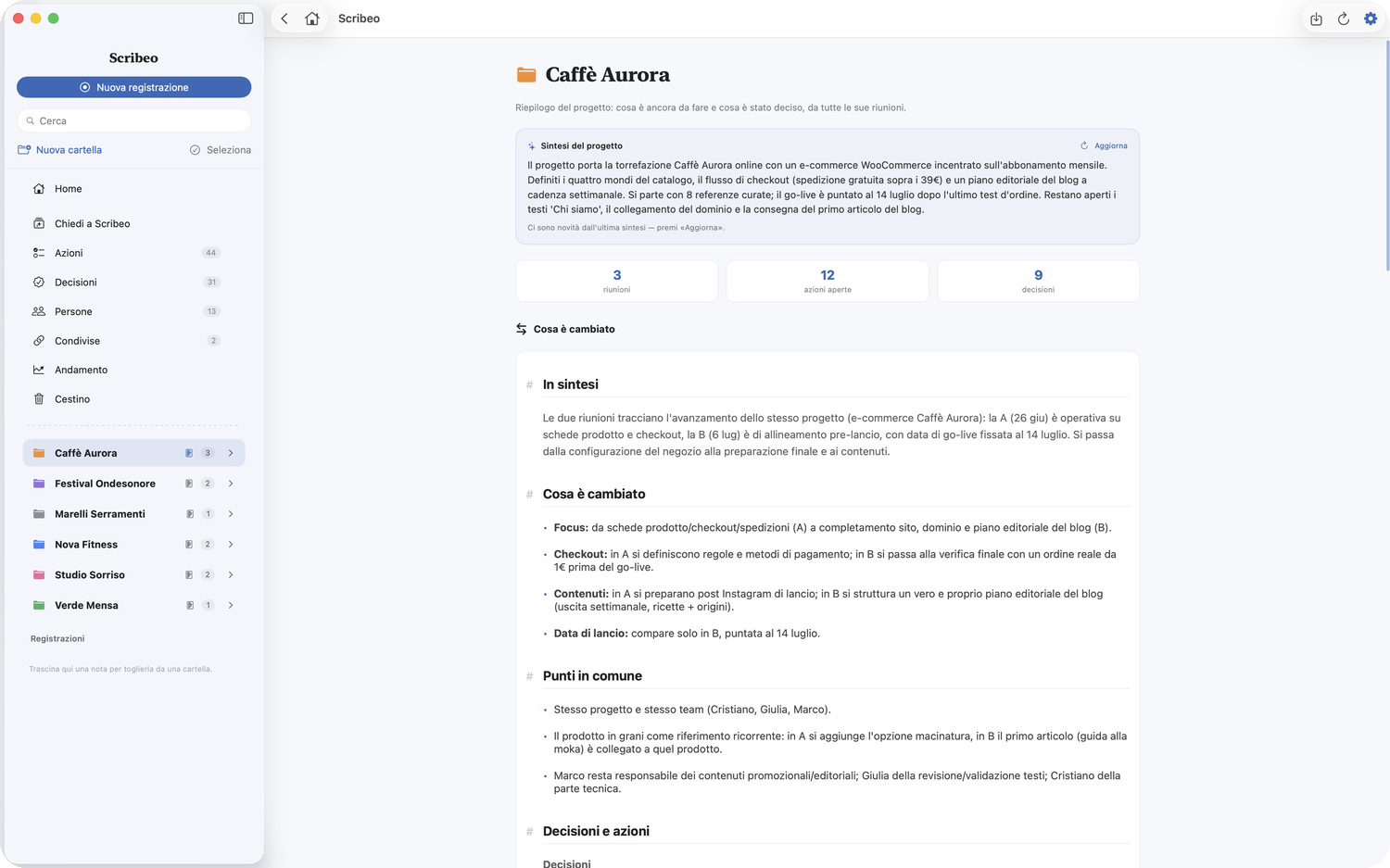
Each folder is a project (or client). Click the folder name to enter its summary: that project's meetings, still-open actions and decisions at a glance. The arrow on the right, instead, expands/collapses the folder in the sidebar.
- Project summary (AI): press Generate summary and the AI writes, in a few lines of prose, where you stand with that project (what it's about, what happened, what's still open). It's kept in memory; when there's news, an Update button regenerates it.
The project dictionary
Transcription gets names wrong when it has never heard them: a surname, a town, a product name. In the project summary there is a Dictionary: add the terms that keep coming up in that project — people, places, acronyms — and Scribeo will use them to spell them correctly in the notes and in the formatted transcript.
Below the field you'll find suggestions, taken from names already seen in that project: often a click is enough. The dictionary applies only to that project, and that is exactly why it works: "Emmo" is a client in one folder and a random word in another.
What changed since the last call
If a project has at least two meetings, the summary shows «What changed since the last call»: with one click Scribeo compares the two most recent meetings and tells you how decisions evolved, what's new and what's still open — the project's living memory, without re-reading everything.
Trends
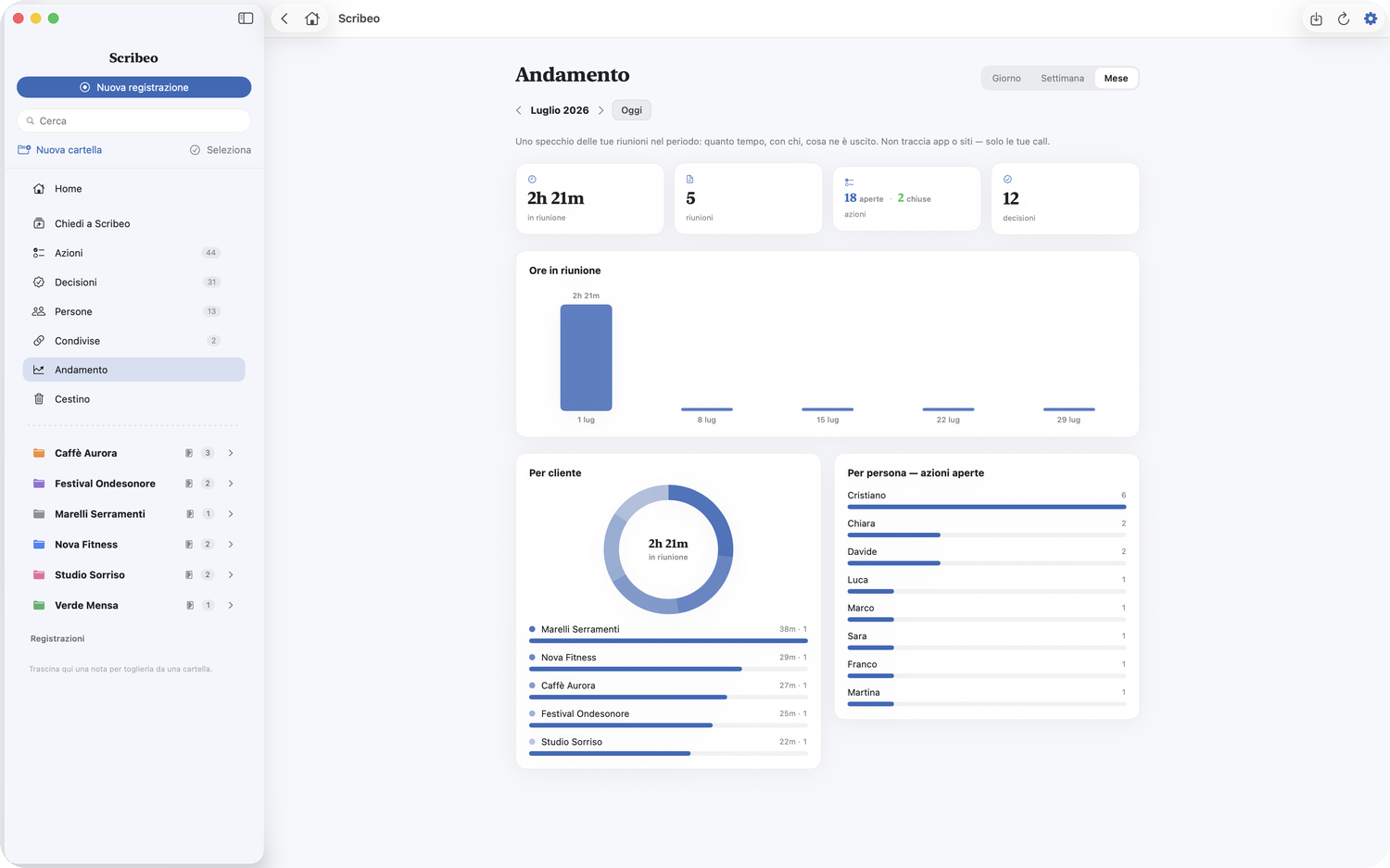
The Trends item is a mirror of your meetings over time (it doesn't track apps or websites). Choose Day / Week / Month and see:
- Four key numbers: hours in meetings, number of meetings, open and closed actions, decisions.
- A histogram of time in meetings over the period.
- By project: how much time you spent on each project (with a donut chart).
- By person: who owns which open actions.
Search
The search bar at the top of the sidebar searches any word across all notes and transcripts (ignoring case and accents). Results are ranked by relevance, with the excerpt highlighted; opening a result highlights the term inside the note.
Share a note
From a note press Share → Create link: Scribeo publishes a web page with an encrypted link you can send to anyone. On the public page the recipient also gets Download PDF and Download Markdown buttons.
- Include the transcript too: turn on the option and the shared page shows two tabs — Summary and Transcript — so the recipient also gets the full text of the call (handy for journalists and collaborators). It's opt-in, per note.
- If you edit the note after publishing, a notice reminds you to update the shared version (same link).
- You can disable sharing anytime: the page will no longer be reachable.
The Shared notes item in the sidebar gathers all published notes, grouped by project, so you quickly find what you've already shared and with whom.
Folders, colors and trash
- Create folders by client or project and drag notes into them; the number next to a folder shows how many it holds.
- Color: right-click a folder → Color to tint it. The color shows up as a tag in the project summary and in actions/decisions.
- Reorder: hover a folder and drag the handle (the dots on the left) to arrange them your way; the right-click menu also has «Move up/down» and «Sort A→Z».
- When you have many folders, Scribeo shows the first ones and a «Show more» to reveal them all.
- Deleted notes go to the Trash (its own item), where you can restore or permanently delete them.
Settings and storage
- Where to save: Scribeo takes care of it. Your notes stay Markdown files any editor can read: Export all notes hands them over whenever you want.
- Sync: if you work on more than one Mac, Scribeo can keep them in step through your private iCloud. It is off: you turn it on in Settings → Sync. Notes, transcripts, actions, projects and people are synced. Audio has its own switch, also off: turn it on and a compressed copy of each meeting (~14 MB per hour) is uploaded, so you can replay it on all your Macs. When you edit the same note on two Macs, Scribeo merges the two versions instead of keeping just one. If your iCloud storage is full, Scribeo tells you at the top of your notes list until there's room again, then picks up on its own.
- Keep the audio: you can decide whether to keep the audio file after transcription.
- Launch at Mac startup: to always have it ready in the background.
- Apps to ignore: using a screen recorder (e.g. Screen Studio)? Add it here so Scribeo doesn't start while you record a video.
- Updates: Scribeo checks for new versions on its own and downloads them with a progress bar.
Privacy and security
- Transcription happens locally on your Mac (Whisper): the audio doesn't leave your computer to be transcribed.
- AI notes are generated by sending the AI provider (Scribeo AI or your key) only the text of the transcript.
- Your API key is stored encrypted on your Mac and never sent to us.
- While recording you always see it (red indicator + notification). You can enable "Ask before recording".
FAQ
How much does it cost? +
Scribeo is free. Notes work right away thanks to Scribeo AI included, with an allowance to try it. For ongoing use you can connect your own AI key and pay usage to the provider, usually a few cents per call.
Do I need to set up an AI key? +
No: with Scribeo AI included notes work right away, no key. If you prefer your own (Claude, OpenAI or Gemini), it takes a minute in Settings → Artificial Intelligence.
Does it record without me noticing? +
No. While recording you see a red indicator in the menu bar and get a notification. You can also enable "Ask before recording" to confirm each time.
Does "Screen Recording" record the video? +
No. It's only used to capture the computer's audio (the other party's voice in calls). Scribeo does not record or save your screen's video.
Where does my data go? +
Notes and recordings live on your Mac, in a folder managed by the app. Transcription is local. Only the text is sent to the AI to generate the notes. If you turn on sync (off by default), your notes pass through your own private iCloud — never through our servers — while the audio stays on the Mac that recorded it, unless you also turn on «Sync audio too». See Privacy.
Does it work with Zoom, Meet, Teams? +
Yes. With automatic recording Scribeo starts on its own when a video call begins on these (and other) platforms. Alternatively press Join from the calendar event.
Why doesn't the transcript tell speakers apart? +
The You / Other party distinction works for recorded video calls (where there are two separate audio tracks). For imported audio or in-person recordings with a single microphone it isn't available.
Which Macs does it work on? +
Macs with Apple Silicon (M1 or later) and macOS 15 or higher.
How do I install it? +
Open the downloaded file, drag Scribeo into the Applications folder and open it with a double click. Installation guide →
Didn't find the answer? Write to us at supporto@scribeo.it. Enjoy! 🎙️ → 📝