Scribeo automatically records your video calls, transcribes them on your Mac and creates smart AI notes: summary, key points and to-dos. Works right away, no key to configure.
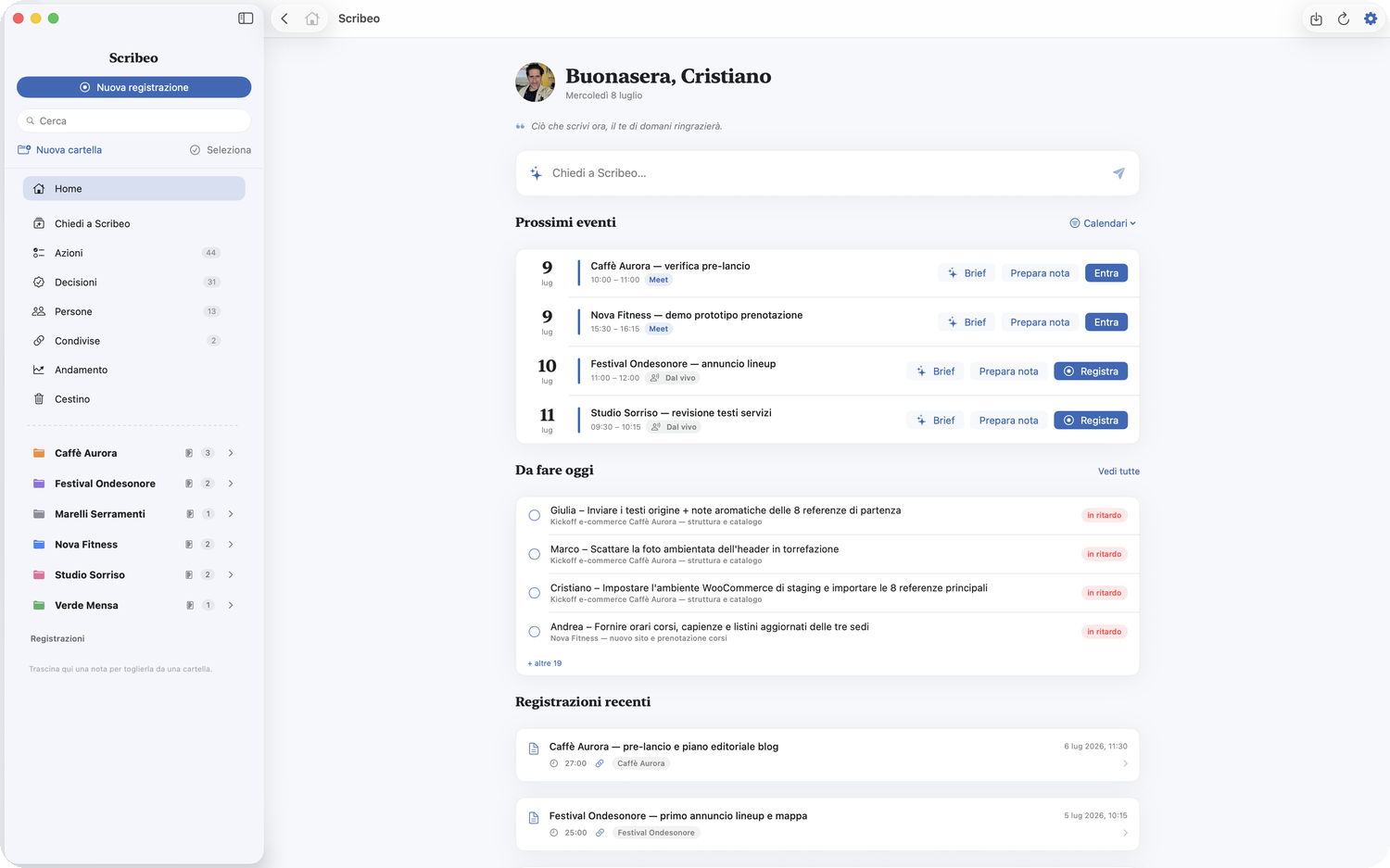
No account, no subscription. Install it, grant the permissions and the notes work right away — Scribeo AI is included.
Drag Scribeo into Applications and grant microphone and screen recording. Just once.
Scribeo AI is included: an allowance to try it, with no key to configure. For ongoing use you connect your own AI key. How it works →
Scribeo starts on its own when a video call begins. At the end of the call you find the transcript and notes ready.
Built for people who do lots of calls and don't want to waste time taking notes anymore.
Detects when a call begins (Zoom, Meet, Teams…) and records on its own. You can also confirm first, so it never records without you knowing.
With Whisper, right on your Mac (Metal GPU). The audio never leaves your computer.
Summary, key points, decisions and to-dos. Scribeo AI included, no key needed — or use your own (Claude, OpenAI, Gemini).
Add personal notes in Markdown: the AI merges them into the final summary.
See your upcoming events (Google too) and instantly open the recording linked to each one.
Folders per client, search, rename, multi-select and a trash with restore.
Export to Markdown, PDF or Word, or create an encrypted web link to share with anyone.
Your notes are Markdown files on your Mac. Export them all whenever you like, without asking anyone.
From the call to the note, all the way to actions and project memory. Here's what it actually looks like.
Summary, key points, decisions and to-dos — formatted and ready the moment the call ends. You read, you don't transcribe.
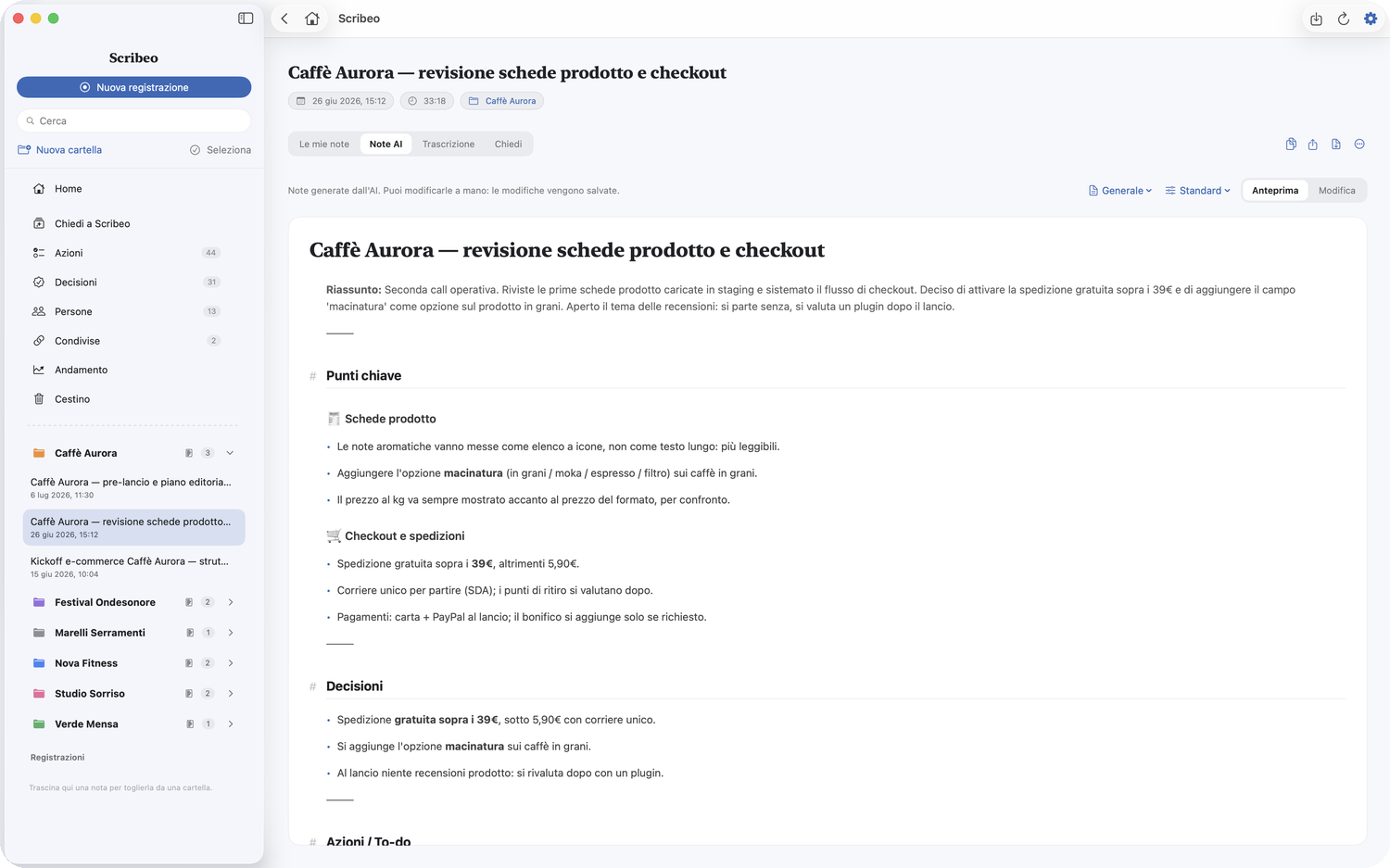
Scribeo gathers to-dos from all your calls, figures out who's on it and reminds you of due dates — with an Apple Reminder.
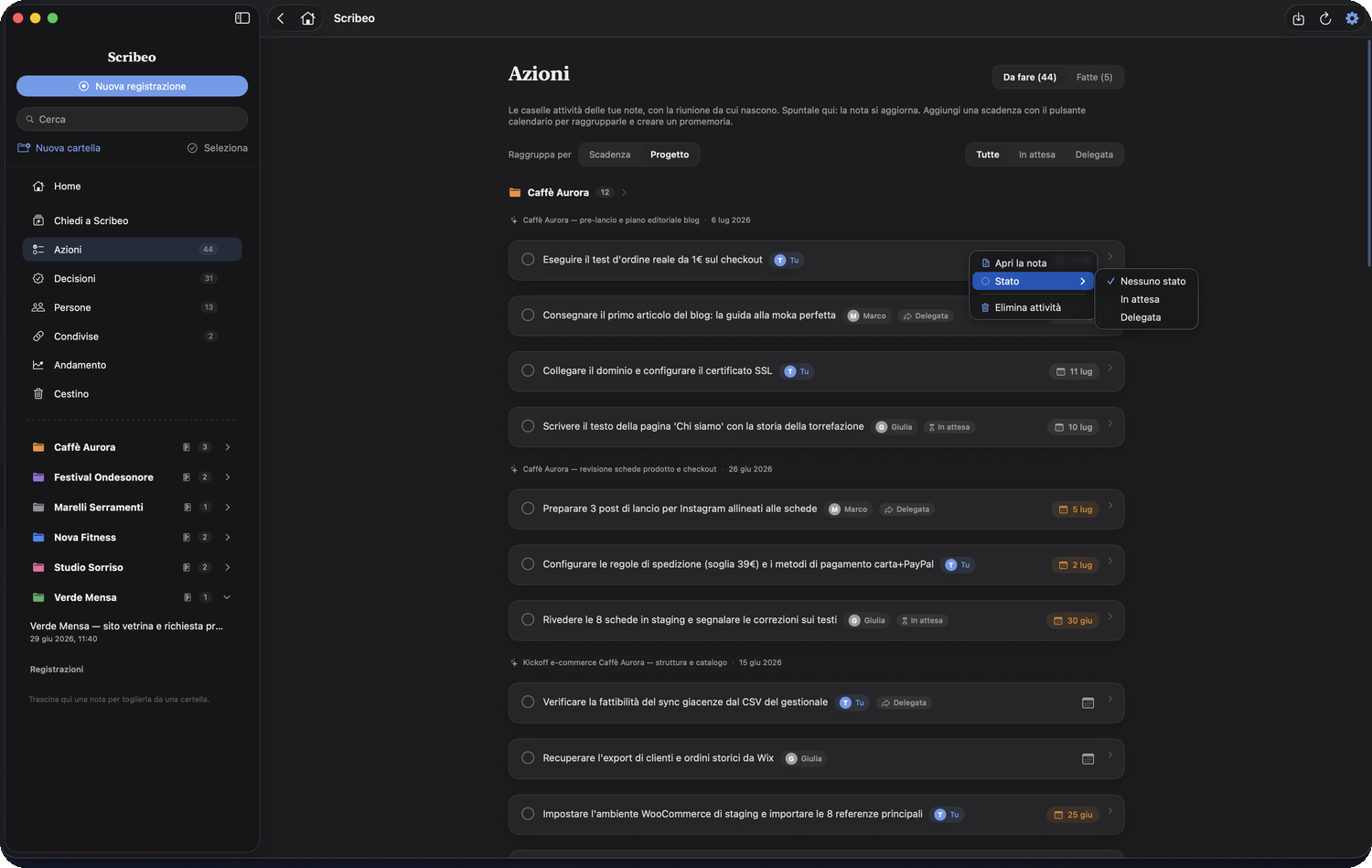
For every client: decisions made, what's still open and what changed since the last call. The living memory of each project.
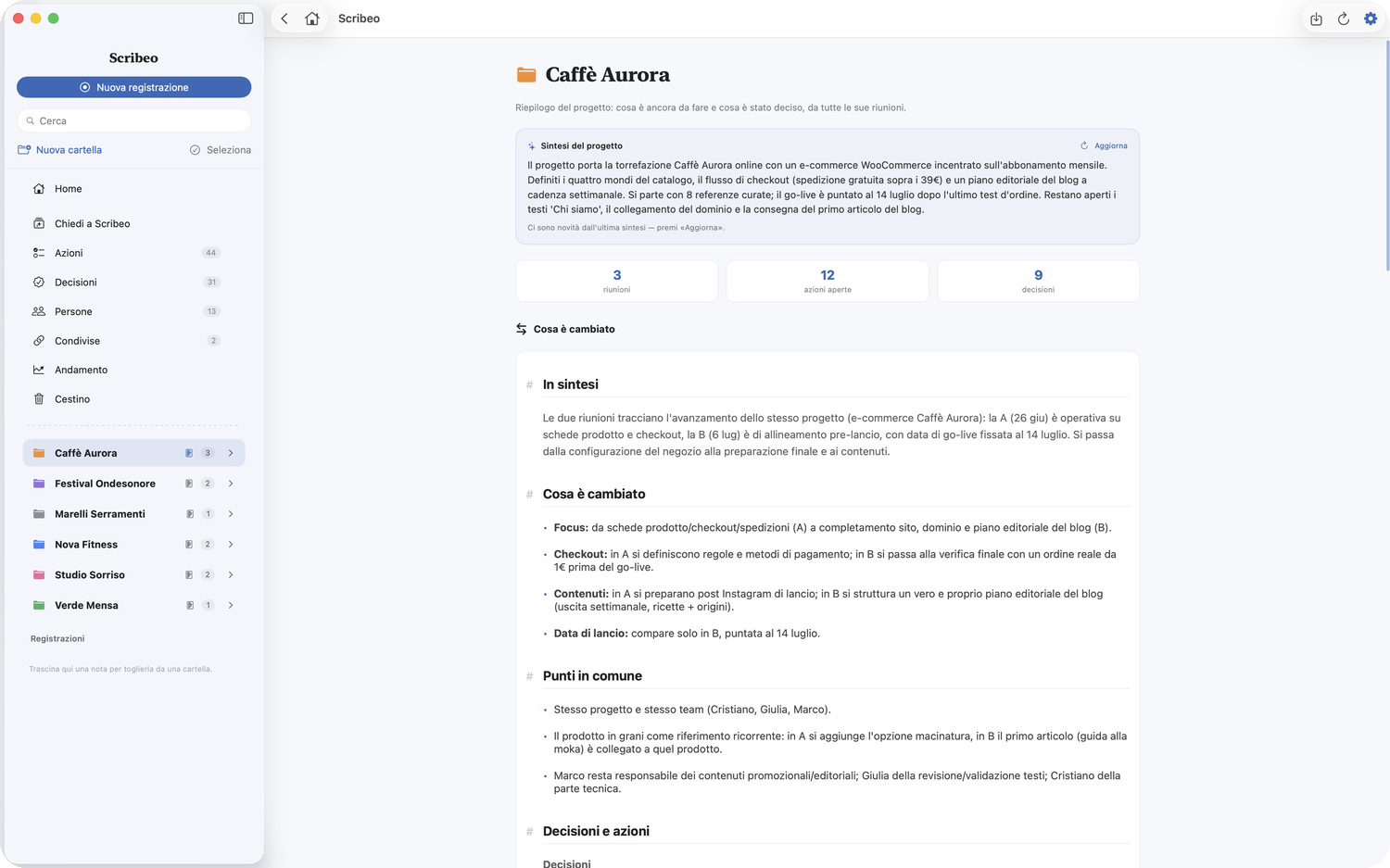
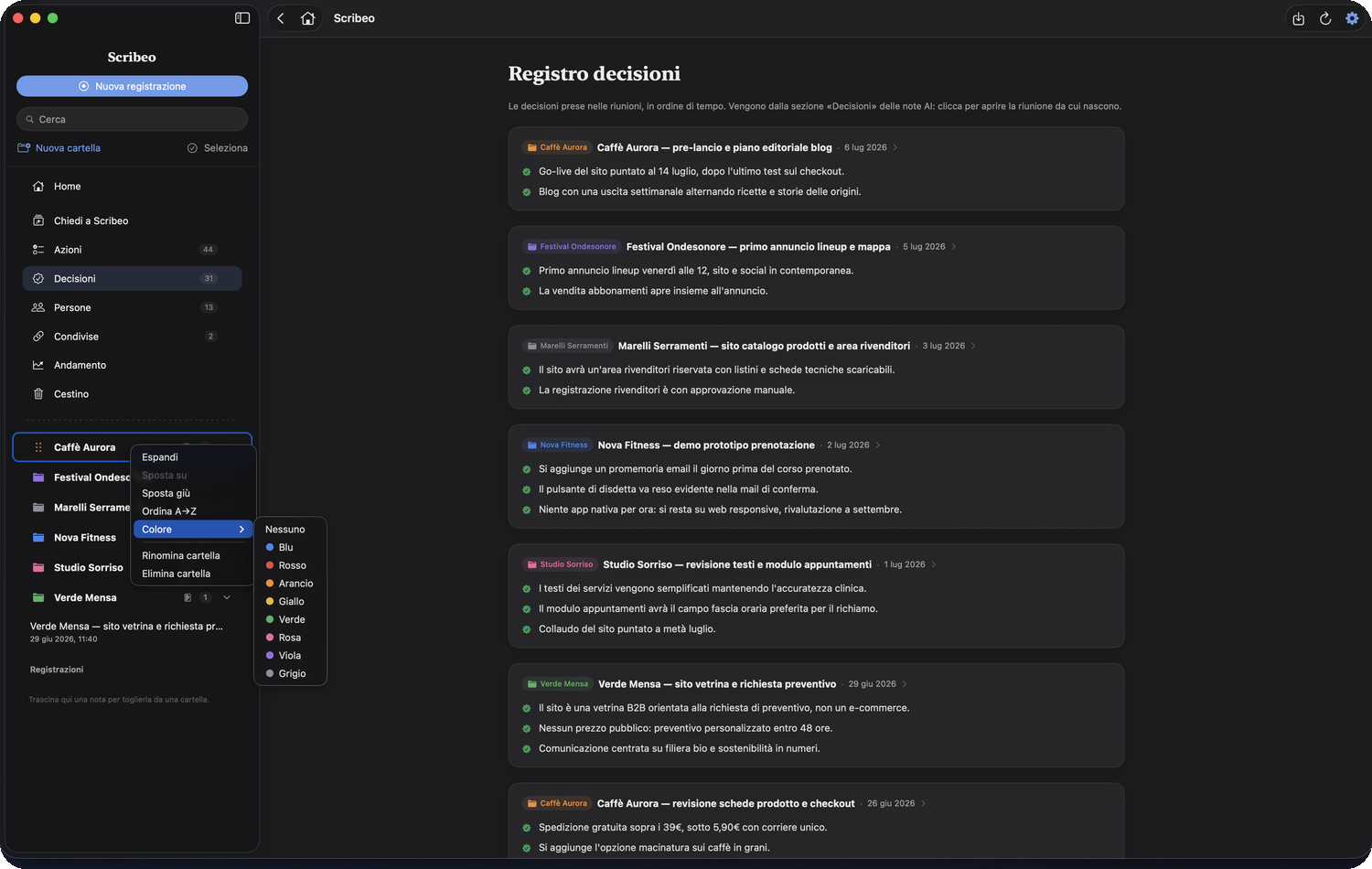
Every choice made in a meeting lands in a log, in chronological order, with the call it came from.
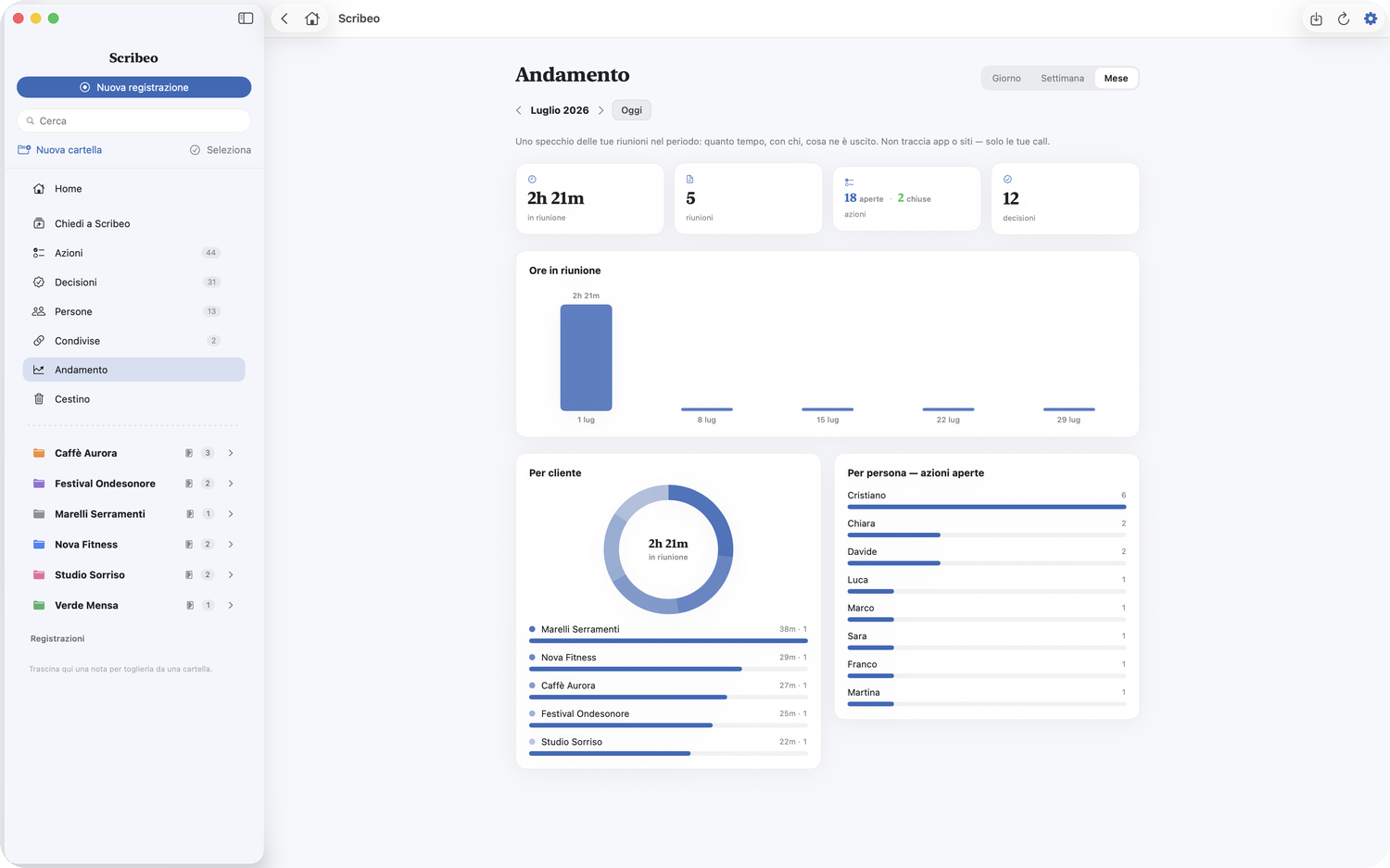
How much time you spend in calls, with whom and on which projects. A mirror of your work — not a tracker.
The audio never leaves your Mac: only the text needed to generate the notes is sent to the AI. Shared notes are end-to-end encrypted: not even we can read them. If you turn on sync between your Macs, your notes pass through your own iCloud — never through our servers.
Scribeo is free. Notes work right away thanks to Scribeo AI included, with an allowance to try it — without configuring anything. For ongoing use you can connect your own AI key (Claude, OpenAI or Gemini) and pay the usage directly to the provider, usually a few cents per call.
No: with Scribeo AI included notes work right away, no key needed. If you prefer to use your own (Claude, OpenAI or Gemini), it takes a minute to set up. See how →
No. While recording you see a red indicator in the menu bar and get a notification. You can also enable "Ask before recording" to confirm every time.
Macs with Apple Silicon (M1 or later) and macOS 15 or higher.
Open the downloaded file, drag Scribeo into the Applications folder and open it with a double click. Full guide →
Let Scribeo do it. You focus on the conversation.
Download Scribeo for Mac Scribeo